
Chrome Browser: How to emulate a touch screen
The Chrome Browser integrates a nice feature to simulate multiple mobile devices or a touch screen.
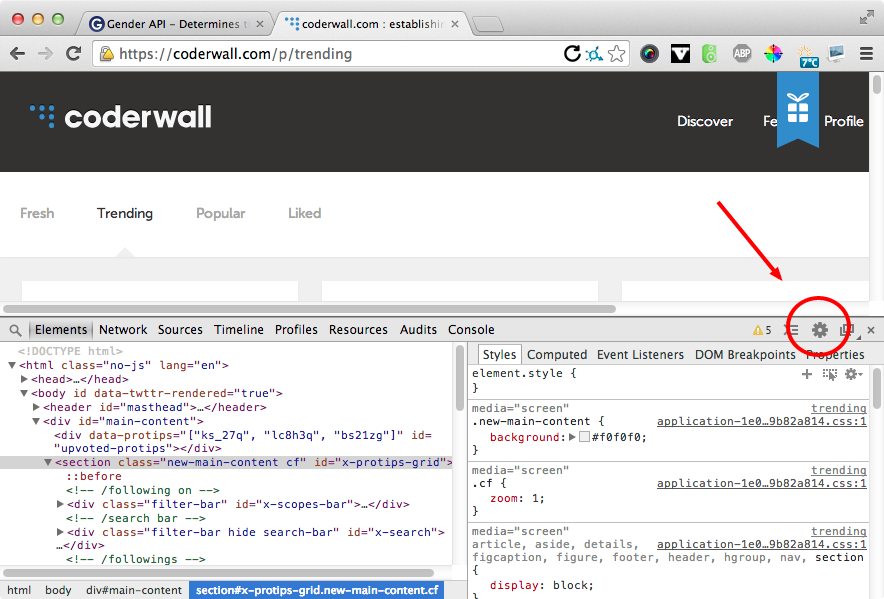
First of all you have to enable the "Emulation" view in the console drawer. Open the Developer Tools and click the settings icon:
Next, switch to the "General" panel and enable "Show emulation view in console drawer"
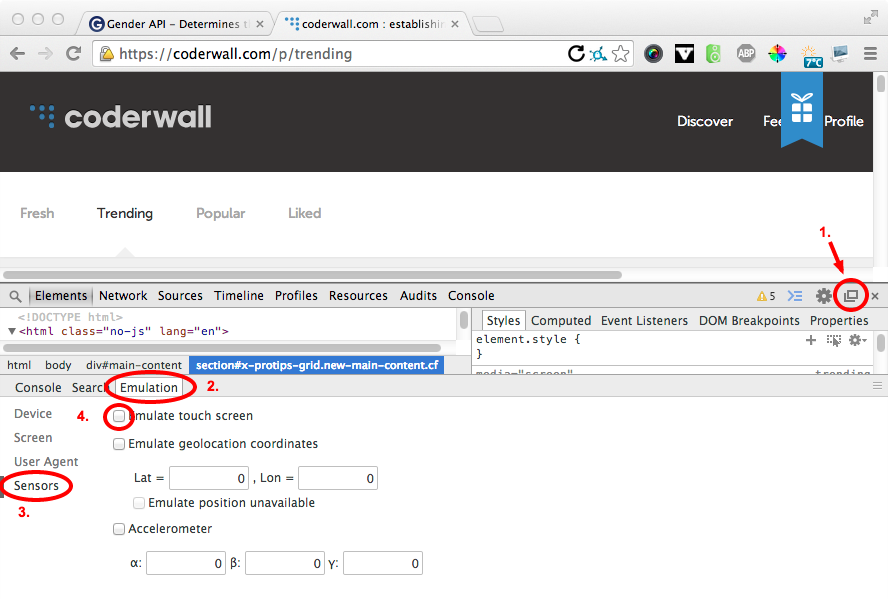
Now close the settings and press the ESC (Escape Key) and switch to the "Emulation" Panel (2). The "Sensors" menu (3) let's you enable the "Emulate touch screen" (4) checkbox. That's it!
Written by Markus Perl
Related protips
2 Responses

Neat :P Thanks!

On the end if you can't find "console drawer", just hit "Esc" key and then select the Emulation panel. ;)
Have a fresh tip? Share with Coderwall community!


JavaScript on a page runs with the privileges of that origin. One altered library, tag manager, or snippet can read inputs, change what people see, and call your APIs as the user.
Security insights from Cside